
Using Tesorai Datasets
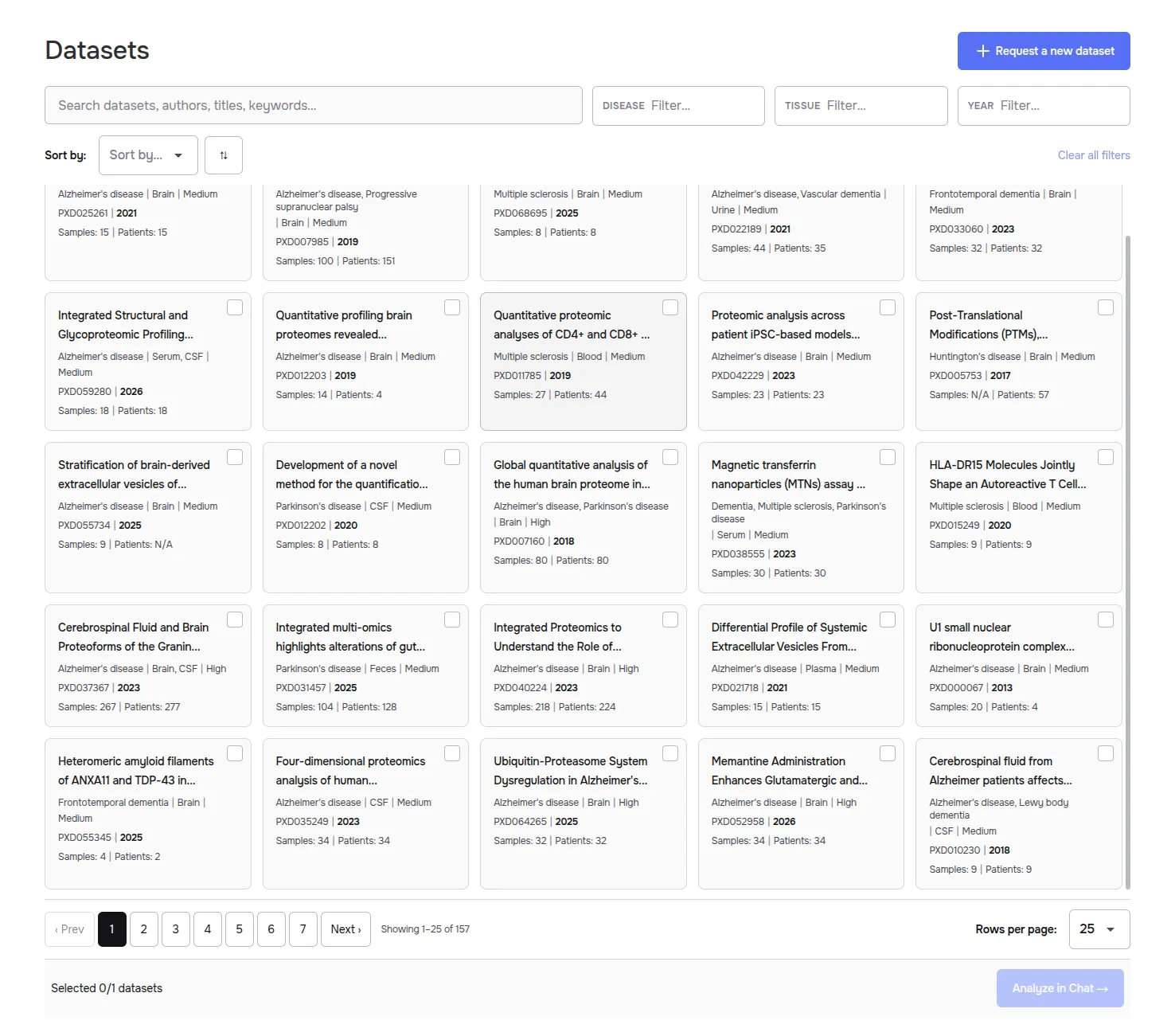
The Datasets page is a searchable catalogue of public proteomics datasets that Tesorai has prepared for analysis. Browse studies by disease, tissue, or keyword, inspect a study’s metadata and abstract, then send it straight to Tesorai Chat for analysis.
Opening the Datasets page
Section titled “Opening the Datasets page”Select Datasets in the top navigation bar. The catalogue opens as a grid of dataset cards.
Finding a dataset
Section titled “Finding a dataset”The toolbar above the grid lets you narrow the catalogue:
- Search – matches across dataset IDs, titles, authors, and keywords.
- Disease, Tissue, and Year – type in any of these filters to keep only the matching datasets.
- Sort by – choose a field to order the results by. Use the button next to it to cycle between ascending, descending, and the default (no) sort order.
- Clear all filters – resets the search and filter fields (disabled until something is active).
The count beneath the toolbar updates as you search and filter.
Reading a dataset card
Section titled “Reading a dataset card”Each match is shown as a card. From top to bottom, a card shows:
| Line | Example |
|---|---|
| Title | 27-Plex Tandem Mass Tag… |
| Disease · Tissue · Analysis readiness | Alzheimer’s disease · Brain · Medium |
| Accession · Year | PXD025261 · 2021 |
| Sample and patient counts | Samples: 15 · Patients: 15 |
Use the checkbox in the card’s top-right corner to select the dataset, or click anywhere else on the card to open its full details.
Inspecting dataset details
Section titled “Inspecting dataset details”Clicking a card opens the Dataset details panel on the right. Drag its left edge to resize it, and close it with the ✕.
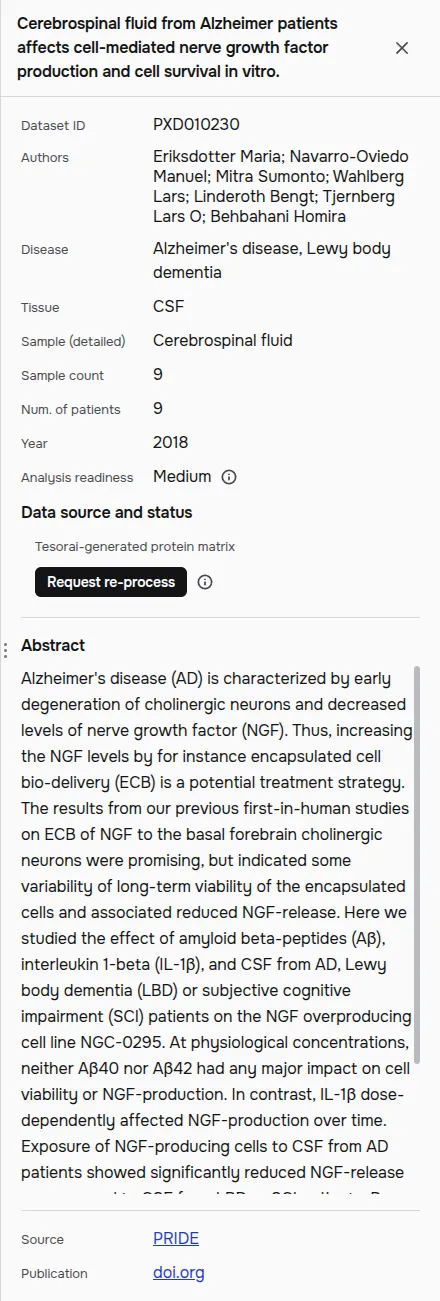
The panel lists the dataset’s metadata, such as Dataset ID, Authors, Disease, etc.
Analysis readiness
Section titled “Analysis readiness”Analysis readiness reflects how complete a dataset is, and therefore how ready it is for a high-quality analysis:
- High – everything needed for a high-quality analysis is available.
- Medium – some data is missing. Hover over the info (ⓘ) icon to see exactly what is missing for that dataset.
Datasets with low analysis readiness are not included in the catalogue.
Data source and status
Section titled “Data source and status”This section shows how the dataset’s protein data was produced — for example, a Tesorai-generated protein matrix. Use Request re-process to ask Tesorai to re-run the dataset through our search algorithm, which can identify more proteins. We’ll email you when the re-processed data is ready.
Selecting a dataset and analyzing it
Section titled “Selecting a dataset and analyzing it”- Tick the checkbox on a dataset card. The footer updates to show your selection.
- Click the Analyze in Chat → button to hand it off to Tesorai Chat, where you can ask questions and run analyses — see the Tesorai Chat Demo to learn what comes next.
The footer lists every dataset you’ve selected by its accession (for example,
PXD025261). Click an accession to reopen that dataset’s details panel, or use
Clear selection to deselect everything.

The Analyze in Chat → button is disabled whenever you select more
than the maximum number of datasets. The footer turns red and warns that
Analysis is currently limited to 1 dataset; expansion is coming soon. To
re-enable it, deselect as many datasets as needed to bring your selection back
within the limit.

Browsing the catalogue
Section titled “Browsing the catalogue”Use the pagination controls at the bottom of the grid to move between pages, and the Rows per page selector to change how many datasets are shown at once.
Requesting a new dataset
Section titled “Requesting a new dataset”Use the Request a new dataset button (top right) to ask us to add a study that isn’t in the catalogue yet. Submit the request and we’ll email you when the dataset is available.
Provide feedback
Section titled “Provide feedback”Tesorai Datasets is a new product and will continue to evolve. To help us prioritize the features that are most valuable to your work, we’d greatly appreciate your feedback. Please feel free to share any suggestions, ideas, or comments with us at info@tesorai.com